
cutlistlab › Manual › Projects
Chapter 17
Projects
Save, open, rename, copy, mark Done and share. Everything you make is kept.
Saving happens by itself
You do not have to do anything. Every change goes straight into your browser storage. The top bar shows the state: Saving… while saving, then Saved just now.
If it fails, it says Not saved in amber. Saving failed. Click to try again. That happens for instance when your browser storage is full or when you work in a private window.
To fix a moment yourself anyway, Save sits in the menu behind the project name, and Cmd or Ctrl + S works.
The project list
Open Projects in the menu behind the project name. Your projects are stored locally on this device. Click a project to open it.
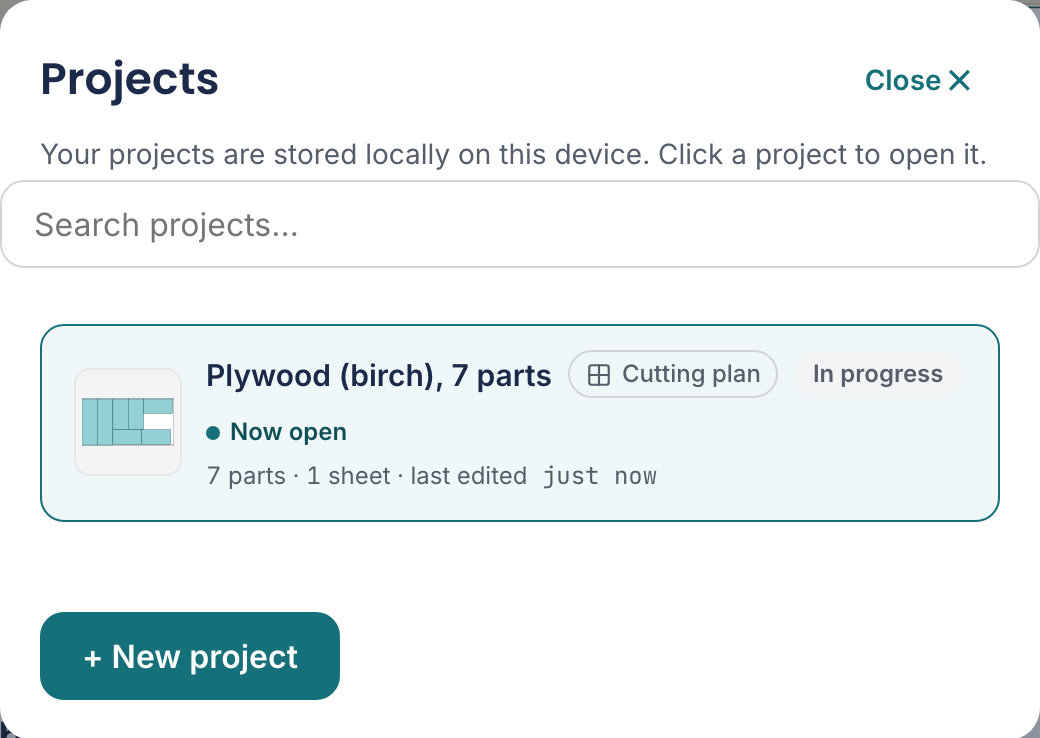
Each project shows what it contains: Cabinet design, Cutting plan or Linear (or two of them, when a project has sheets and length work), how many parts on how many sheets and how many pieces from how many stock lengths, when you last worked on it, and whether it is In progress or Done. The project you are in now is marked Now open.
- + New project
- Start with an empty project.
- Rename
- Rename. You can also click the project name at the top.
- Mark as done
- The project is finished. The usable offcuts go to your offcut stock. See Offcut stock.
- Reopen
- Back into editing. The offcuts this project produced then disappear from your stock again; they do not exist yet after all.
- Delete
- Remove. You get a confirmation first: Delete Side? This cannot be undone.
With many projects, use the search field. If it finds nothing, it says No project matches your search.
Making a variant
To try the same project with different sizes without losing the original, use Save as…. You get a copy and can name it right away: Copy created: Side. Type the new name.
Sharing a project
With Share this project you make a link. Link copied. The link opens a copy of this project. The whole project sits in the link itself, no server involved.