
cutlistlab › Manual › Sheet material
Chapter 4
Sheet material
The sheets to cut from: entering your own, picking from the library, quantities, price and factory edges.
The sheet list
Click Sheet material in the bar above the input to jump straight to the sheet card, even with a long parts list. Use Parts to return to your parts.
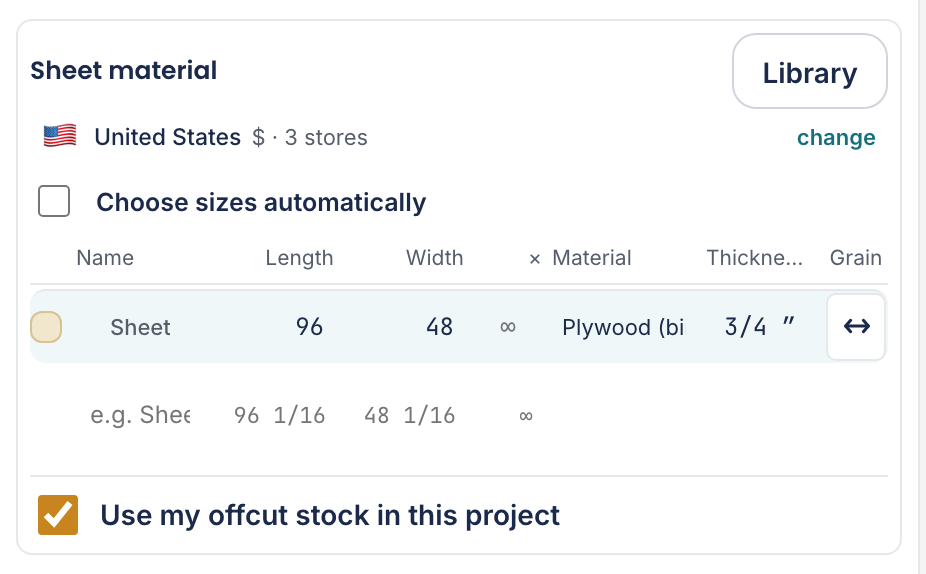
Under Sheet material you say what you cut from. There is always at least one sheet; an empty list would produce no plan. You may add as many kinds as you like, mixed together.
With + Add sheet below the list you add a second kind of sheet, for instance 12 mm for the back panel alongside 18 mm for the carcass. You may mix them; the tool keeps material and thickness apart. Delete removes one, though you always keep at least one (You need at least one sheet).
- Name
- What you call this sheet. Appears above every block in the cutting plan.
- Size
- Length and width of the whole sheet, as you buy it.
- Quantity available (empty = unlimited)
- How many sheets of this kind you have or want to buy. Leave it empty for unlimited: then the tool takes as many as it needs. If you do enter a number, the calculation sticks to it, and you get a message when it does not fit.
- Material
- Plywood, MDF, particle board, melamine. The name you choose here must match what your parts say, otherwise nothing fits on it.
- Thickness
- The thickness of the sheet. This must match your parts too.
- Indicative price per sheet
- Guide price per sheet. Only needed if you want to optimise for Lowest cost or want a shopping list. If you pick a sheet from the library, the price is already filled in.
- Set the grain direction for the sheet
- The grain direction of the sheet itself. Only matters if you have parts with a fixed grain.
- Pre-edged
- Which edges of the sheet are already finished. A piece that lands on such an edge needs no banding there. See Grain and edge banding.
Where a sheet comes from
A small badge can sit behind the name of a sheet. It says how that sheet ended up in your list.
- default
- A default sheet the tool set up itself, matching your country. Tap it to pick a sheet from the library yourself.
- suggested
- A suggestion coming from your cabinet design. While you design a cabinet, the tool keeps the sheet list up to date. If you change it yourself, that stops, and you see the message The cabinet no longer updates this list automatically..
- From your offcut stock (fixed, not editable)
- A piece from your offcut stock. You cannot change these rows: the size is fixed, because the piece already exists. See Offcut stock.
Once the automatic list has stopped, Update automatically again turns it back on.
Choosing sizes automatically
Above the list sits a checkbox that lets the tool pick a sheet size itself from what is sold in your country. That helps when you do not yet know which sheet you will buy: you see straight away which size works out cheapest.
Including your offcut stock
At the bottom of the block sits Use my offcut stock in this project. With that on, the tool tries your offcuts first before cutting into a new sheet. In a new project it is on.
Offcuts in a material this project uses join the calculation automatically, before a new sheet. They are only claimed for this project once the cutting plan actually uses them. Manage them with the Offcuts button.
The same checkbox also sits at the top of Offcut stock. It is one setting, per project. See Offcut stock.